Introduction
CSS is a language that describes the style of an HTML document.
CSS describes how HTML elements should be displayed.
This tutorial will teach you CSS from basic to advanced.
What is CSS?
- CSS stands for Cascading Style Sheets
- CSS describes how HTML elements are to be displayed on screen, paper, or in other media
- CSS saves a lot of work. It can control the layout of multiple web pages all at once
- External stylesheets are stored in CSS files
Why Use CSS?
CSS is used to define styles for your web pages, including the design, layout and variations in display for different devices and screen sizes.
CSS Example
                        body {

                              background-color: lightblue;

                            }


                            h1 {

                              color: white;

                              text-align: center

                            }


                            p {

                              font-family: verdana;

                              font-size: 20px;

                            }
CSS Solved a Big Problem
HTML was NEVER intended to contain tags for formatting a web page!
HTML was created to describe the content of a web page, like:
                <h1>This is a heading</h1>


                <p>This is a paragraph.</p>
When tags like <font>, and color attributes were added to the HTML 3.2 specification, it started a nightmare for web developers. Development of large websites, where fonts and color information were added to every single page, became a long and expensive process.
To solve this problem, the World Wide Web Consortium (W3C) created CSS.
CSS removed the style formatting from the HTML page!
CSS Saves a Lot of Work!
The style definitions are normally saved in external .css files.
With an external stylesheet file, you can change the look of an entire website by changing just one file!
Syntax
A CSS rule-set consists of a selector and a declaration block:
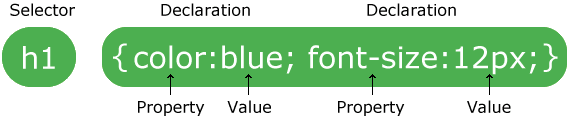
The selector points to the HTML element you want to style.
The declaration block contains one or more declarations separated by semicolons.
Each declaration includes a CSS property name and a value, separated by a colon.
Multiple CSS declarations are separated with semicolons, and declaration blocks are surrounded by curly braces.
Example
In this example all <p> elements will be center-aligned, with a red text color:
                        p {

                          color: verdana;

                          text-align: 20px;

                        }
Example Explained
- p is a selector in CSS (it points to the HTML element you want to style: <p>).
- color is a property, and red is the property value
- text-align is a property, and center is the property value
Selectors
CSS selectors are used to "find" (or select) the HTML elements you want to style.
We can divide CSS selectors into five categories:
- Simple selectors (select elements based on name, id, class)
- Combinator selectors (select elements based on a specific relationship between them)
- Pseudo-class selectors (select elements based on a certain state)
- Pseudo-elements selectors (select and style a part of an element)
- Attribute selectors (select elements based on an attribute or attribute value)
This page will explain the most basic CSS selectors.
The CSS element Selector
The element selector selects HTML elements based on the element name.
Example
In this example all <p> elements will be center-aligned, with a red text color:
                        p {

                          text-align: center;

                          color: red;

                        }
The CSS id Selector
The id selector uses the id attribute of an HTML element to select a specific element.
The id of an element is unique within a page, so the id selector is used to select one unique element!
To select an element with a specific id, write a hash (#) character, followed by the id of the element.
Example
The CSS rule below will be applied to the HTML element with id="para1"
                        #para1 {

                          text-align: center;

                          color: red;

                        }
The CSS class Selector
The class selector selects HTML elements with a specific class attribute.
To select elements with a specific class, write a period (.) character, followed by the class name.
Example
In this example all HTML elements with class="center" will be red and center-aligned:
                        .center {

                          text-align: center;

                          color: red;

                        }
You can also specify that only specific HTML elements should be affected by a class.
Example
In this example only <p> elements with class="center" will be center-aligned:
                        p.center {

                          text-align: center;

                          color: red;

                        }
HTML elements can also refer to more than one class.
Example
In this example the <p> element will be styled according to class="center" and to class="large":
<p class="center large">This paragraph refers to two classes.</p>
The CSS Universal Selector
The universal selector (*) selects all HTML elements on the page.
Example
The CSS rule below will affect every HTML element on the page:
                        * {

                          text-align: center;

                          color: blue;

                        }
The CSS Grouping Selector
The grouping selector selects all the HTML elements with the same style definitions.
Look at the following CSS code (the h1, h2, and p elements have the same style definitions):
Example
                        h1 {

                          text-align: center;

                          color: red;

                        }


                        h2 {

                          text-align: center;

                          color: red;

                        }


                        p {

                          text-align: center;

                          color: red;

                        }
It will be better to group the selectors, to minimize the code.
To group selectors, separate each selector with a comma.
Example
In this example we have grouped the selectors from the code above:
                        h1, h2, p {

                          text-align: center;

                          color: red;

                        }
All CSS Simple Selectors
| Selector | Example | Example description |
|---|---|---|
| .class | .intro | Selects all elements with class="intro" |
| #id | #firstName | Selects the element with id="firstName" |
| * | * | Selects all elements |
| element | p | Selects all <p> elements |
| element,element,.. | div, p | Selects all <div> elements and all <p> elements |
How To Add CSS
When a browser reads a style sheet, it will format the HTML document according to the information in the style sheet.
Three Ways to Insert CSS
There are three ways of inserting a style sheet:
- External CSS
- Internal CSS
- Inline CSS
External CSS
With an external style sheet, you can change the look of an entire website by changing just one file!
Each HTML page must include a reference to the external style sheet file inside the <link> element, inside the head section.
Example
External styles are defined within the <link> element, inside the <head> section of an HTML page:
                        <!DOCTYPE html>

                        <html>

                        <head>

                        <link rel="stylesheet" type="text/css" href="mystyle.css">

                        </head>

                        <body>


                        <h1>This is a heading</h1>

                        <p>This is a paragraph.</p>


                        </body>

                        </html>
An external style sheet can be written in any text editor, and must be saved with a .css extension.
The external .css file should not contain any HTML tags.
Here is how the "mystyle.css" file looks like:
"mystyle.css"
                        body {

                          background-color: lightblue;

                        }


                        h1 {

                          color: navy;

                          margin-left: 20px;

                        }
Internal CSS
An internal style sheet may be used if one single HTML page has a unique style.
The internal style is defined inside the <style> element, inside the head section.
Example
Internal styles are defined within the <style> element, inside the <head> section of an HTML page:
                        <!DOCTYPE html>

                        <html>

                        <head>

                        <style>

                        body {

                          background-color: linen;

                        }


                        h1 {

                          color: maroon;

                          margin-left: 40px;

                        }

                        </style>

                        </head>

                        <body>


                        <h1>This is a heading</h1>

                        <p>This is a paragraph.</p>


                        </body>

                        </html>
Inline CSS
An inline style may be used to apply a unique style for a single element.
To use inline styles, add the style attribute to the relevant element. The style attribute can contain any CSS property.
Example
Internal styles are defined within the <style> element, inside the <head> section of an HTML page:
                        <!DOCTYPE html>

                        <html>

                        <body>


                        <h1 style="color:blue;text-align:center;">This is a heading</h1>

                        <p style="color:red;">This is a paragraph.</p>


                        </body>

                        </html>
Multiple Style Sheets
If some properties have been defined for the same selector (element) in different style sheets, the value from the last read style sheet will be used.
Assume that an external style sheet has the following style for the <h1> element:
                        h1 {

                          color: navy;

                        }
Then, assume that an internal style sheet also has the following style for the <h1> element:
                        h1 {

                          color: orange;

                        }
Example
If the internal style is defined after the link to the external style sheet, the <h1> elements will be "orange":
                        <head>

                        <link rel="stylesheet" type="text/css" href="mystyle.css">

                        <style>

                        h1 {

                          color: orange;

                        }

                        </style>

                        </head>
Example
However, if the internal style is defined before the link to the external style sheet, the <h1> elements will be "navy":
                        <head>

                        <style>

                        h1 {

                          color: orange;

                        }

                        </style>

                        <link rel="stylesheet" type="text/css" href="mystyle.css">

                        </head>
Cascading Order
What style will be used when there is more than one style specified for an HTML element?
All the styles in a page will "cascade" into a new "virtual" style sheet by the following rules, where number one has the highest priority:
- Inline style (inside an HTML element)
- External and internal style sheets (in the head section)
- Browser default
So, an inline style has the highest priority, and will override external and internal styles and browser defaults.
Comments
Comments are used to explain the code and may help when you edit the source code at a later date.
Comments are ignored by browsers.
A CSS comment starts with /* and ends with */:
Example
                        /* This is a single-line comment */

                        p {

                          color: red;

                        }
You can add comments wherever you want in the code:
Example
                        p {

                          color: red;
                        /* Set text color to red */

                        }
Comments can also span multiple lines:
Example
                        /* This is
a multi-line
comment */


                        p {

                          color: red;

                        }
Colors
Colors are specified using predefined color names, or RGB, HEX, HSL, RGBA, HSLA values.
CSS Color Names
In CSS, a color can be specified by using a color name:
| Tomato | Orange | DodgerBlue | MediumSeaGreen |
| Gray | SlateBlue | Violet | LightGray |
CSS/HTML support 140 standard color names.
CSS Background Color
You can set the background color for HTML elements:
Hello World
Lorem ipsum dolor sit amet, consectetuer adipiscing elit, sed diam nonummy nibh euismod tincidunt ut laoreet dolore magna aliquam erat volutpat. Ut wisi enim ad minim veniam, quis nostrud exerci tation ullamcorper suscipit lobortis nisl ut aliquip ex ea commodo consequat.
Example
                        <h1 style="background-color:DodgerBlue;">Hello World</h1>

                        <p style="background-color:Tomato;">Lorem ipsum...</p>
CSS Text Color
You can set the color of text:
Hello World
Lorem ipsum...
Ut wisi enim...
Example
                        <h1 style="background-color:Tomato;">Hello World</h1>

                        <p style="background-color:DodgerBlue;">Lorem ipsum...</p>

                        <p style="background-color:MediumSeaGreen;">Ut wisi enim...</p>
CSS Border Color
You can set the color of borders:
Hello World
Hello World
Hello World
Example
                        <h1 style="border:2px solid Tomato;">Hello World</h1>

                        <h1 style="border:2px solid DodgerBlue;">Hello World</h1>

                        <h1 style="border:2px solid Violet;">Hello World</h1>
CSS Color Values
In CSS, colors can also be specified using RGB values, HEX values, HSL values, RGBA values, and HSLA values:
Same as color name "Tomato":
Same as color name "Tomato", but 50% transparent:
Example
                        <h1 style="background-color:rgb(255, 99, 71);">...</h1>

                        <h1 style="background-color:#ff6347;">...</h1>

                        <h1 style="background-color:hsl(9, 100%, 64%);">...</h1>


                        <h1 style="background-color:rgba(255, 99, 71, 0.5);">...</h1>

                        <h1 style="background-color:hsla(9, 100%, 64%, 0.5);">...</h1>
Backgrounds
The CSS background properties are used to define the background effects for elements.
In these chapters, you will learn about the following CSS background properties:
- background-color
- background-image
- background-repeat
- background-attachment
- background-position
CSS background-color
The background-color property specifies the background color of an element.
Example
                        body {

                          background-color: lightblue;

                        }
With CSS, a color is most often specified by:
- a valid color name - like "red"
- a HEX value - like "#ff0000"
- an RGB value - like "rgb(255,0,0)"
Look at CSS Color Values for a complete list of possible color values.
Other Elements
You can set the background color for any HTML elements:
Example
Here, the <h1>, <p>, and <div> elements will have different background colors:
                        h1 {

                          background-color: green;

                        }


                        div {

                          background-color: lightblue;

                        }


                        p {

                          background-color: yellow;

                        }
Opacity / Transparency
The opacity property specifies the opacity/transparency of an element. It can take a value from 0.0 - 1.0. The lower value, the more transparent:
| opacity 1 | opacity 0.6 | opacity 0.3 | opacity 0.1 |
Example
                        div {

                          background-color: green;

                          opacity: 0.3;

                        }
Transparency using RGBA
If you do not want to apply opacity to child elements, like in our example above, use RGBA color values. The following example sets the opacity for the background color and not the text:
| 100% opacity | 60% opacity | 30% opacity | 10% opacity |
You learned from our CSS Colors Chapter, that you can use RGB as a color value. In addition to RGB, you can use an RGB color value with an alpha channel (RGBA) - which specifies the opacity for a color.
An RGBA color value is specified with: rgba(red, green, blue, alpha). The alpha parameter is a number between 0.0 (fully transparent) and 1.0 (fully opaque).
Example
                        div {

                          background: rgba(0, 128, 0, 0.3);
                        /*Green background. 30% opacity*/

                        }
Borders
CSS Border Properties
The CSS border properties allow you to specify the style, width, and color of an element's border.
CSS Border Style
The border-style property specifies what kind of border to display.
The following values are allowed:
- dotted - Defines a dotted border
- dashed - Defines a dashed border
- solid - Defines a solid border
- double - Defines a double border
- groove - Defines a 3D grooved border. The effect depends on the border-color value
- ridge - Defines a 3D ridged border. The effect depends on the border-color value
- inset - Defines a 3D inset border. The effect depends on the border-color value
- outset - Defines a 3D outset border. The effect depends on the border-color value
- none - Defines no border
- hidden - Defines a hidden border
The border-style property can have from one to four values (for the top border, right border, bottom border, and the left border).
Example
Demonstration of the different border styles:
                        p.dotted {border-style: dotted;}

                        p.dashed {border-style: dashed;}

                        p.solid {border-style: solid;}

                        p.double {border-style: double;}

                        p.groove {border-style: groove;}

                        p.ridge {border-style: ridge;}

                        p.inset {border-style: inset;}

                        p.outset {border-style: outset;}

                        p.none {border-style: none;}

                        p.hidden {border-style: hidden;}

                        p.mix {border-style: dotted dashed solid double;}
Result:
A dotted border
A dashed border
A solid border
A double border
A groove border. The effect depends on the border-color value.
A ridge border. The effect depends on the border-color value.
An inset border. The effect depends on the border-color value.
An outset border. The effect depends on the border-color value.
No border.
A hidden border.
A mixed border.
Margins
The CSS margin properties are used to create space around elements, outside of any defined borders.
With CSS, you have full control over the margins. There are properties for setting the margin for each side of an element (top, right, bottom, and left).
Margin - Individual Sides
CSS has properties for specifying the margin for each side of an element:
- margin-top
- margin-right
- margin-bottom
- margin-left
All the margin properties can have the following values:
- auto - the browser calculates the margin
- length - specifies a margin in px, pt, cm, etc.
- % - specifies a margin in % of the width of the containing element
- inherit - specifies that the margin should be inherited from the parent element
Tip: Negative values are allowed.
Example
Set different margins for all four sides of a <p> element:
                        p {

                              margin-top: 100px;

                              margin-bottom: 100px;

                              margin-right: 150px;

                              margin-left: 80px;

                        }
Margin - Shorthand Property
To shorten the code, it is possible to specify all the margin properties in one property.
The margin property is a shorthand property for the following individual margin properties:
- margin-top
- margin-right
- margin-bottom
- margin-left
So, here is how it works:
If the margin property has four values:
- margin: 25px 50px 75px 100px;
- top margin is 25px
- right margin is 50px
- bottom margin is 75px
- left margin is 100px
Example
Use the margin shorthand property with four values:
                        p {

                              margin: 25px 50px 75px 100px;

                        }
If the margin property has three values:
- margin: 25px 50px 75px;
- top margin is 25px
- right and left margins are 50px
- bottom margin is 75px
Example
Use the margin shorthand property with three values:
                        p {

                              margin: 25px 50px 75px;

                        }
If the margin property has two values:
- margin: 25px 50px;
- top and bottom margins are 25px
- right and left margins are 50px
Example
Use the margin shorthand property with two values:
                        p {

                              margin: 25px 50px;

                        }
If the margin property has one value:
- margin: 25px;
- all four margins are 25px
Example
Use the margin shorthand property with one value:
                        p {

                              margin: 25px;

                        }
The auto Value
You can set the margin property to auto to horizontally center the element within its container.
The element will then take up the specified width, and the remaining space will be split equally between the left and right margins.
Example
Use margin: auto:
                        div {

                          width: 300px;

                          margin: auto;

                          border: 1px solid red;

                        }
The inherit Value
This example lets the left margin of the <p class="ex1"> element be inherited from the parent element (<div>):
Example
Use of the inherit value:
                        div {

                          border: 1px solid red;

                          margin-left: 100px;

                        }


                        p.ex1 {

                          margin-left: inherit;

                        }
Padding
The CSS padding properties are used to generate space around an element's content, inside of any defined borders.
With CSS, you have full control over the padding. There are properties for setting the padding for each side of an element (top, right, bottom, and left).
Padding - Individual Sides
CSS has properties for specifying the padding for each side of an element:
- padding-top
- padding-right
- padding-bottom
- padding-left
All the padding properties can have the following values:
- length - specifies a padding in px, pt, cm, etc.
- % - specifies a padding in % of the width of the containing element
- inherit - specifies that the padding should be inherited from the parent element
Note: Negative values are not allowed.
Example
Set different padding for all four sides of a <div> element:
                        div {

                          padding-top: 50px;

                          padding-right: 30px;

                          padding-bottom: 50px;

                          padding-left: 80px;

                        }
Padding - Shorthand Property
To shorten the code, it is possible to specify all the padding properties in one property.
The padding property is a shorthand property for the following individual padding properties:
- padding-top
- padding-right
- padding-bottom
- padding-left
So, here is how it works:
If the padding property has four values:
- padding: 25px 50px 75px 100px;
- top padding is 25px
- right padding is 50px
- bottom padding is 75px
- left padding is 100px
Example
Use the padding shorthand property with four values:
                        div {

                              padding: 25px 50px 75px 100px;

                        }
If the padding property has three values:
- padding: 25px 50px 75px;
- top padding is 25px
- right and left paddings are 50px
- bottom padding is 75px
Example
Use the padding shorthand property with three values:
                        div {

                              padding: 25px 50px 75px;

                        }
If the padding property has two values:
- padding: 25px 50px;
- top and bottom paddings are 25px
- right and left paddings are 50px
Example
Use the padding shorthand property with two values:
                        div {

                              padding: 25px 50px;

                        }
If the padding property has one value:
- padding: 25px;
- all four paddings are 25px
Example
Use the padding shorthand property with one value:
                        div {

                              padding: 25px;

                        }
Padding and Element Width
The CSS width property specifies the width of the element's content area. The content area is the portion inside the padding, border, and margin of an element (the box model).
So, if an element has a specified width, the padding added to that element will be added to the total width of the element. This is often an undesirable result.
Example
Here, the <div> element is given a width of 300px. However, the actual width of the <div> element will be 350px (300px + 25px of left padding + 25px of right padding):
                        div {

                          width: 300px;

                          padding: 25px;

                        }
To keep the width at 300px, no matter the amount of padding, you can use the box-sizing property. This causes the element to maintain its width; if you increase the padding, the available content space will decrease.
Example
Use the box-sizing property to keep the width at 300px, no matter the amount of padding:
                        div {

                          width: 300px;

                          padding: 25px;

                          box-sizing: border-box;

                        }